ADBox

Device control. Clearly in view.

Connect Android phones, tablets, TVs, and boxes that support ADB. Bring screen mirroring and control, app management, file transfers, screen captures, recording, and debugging into one visual workspace on Mac and iPhone.

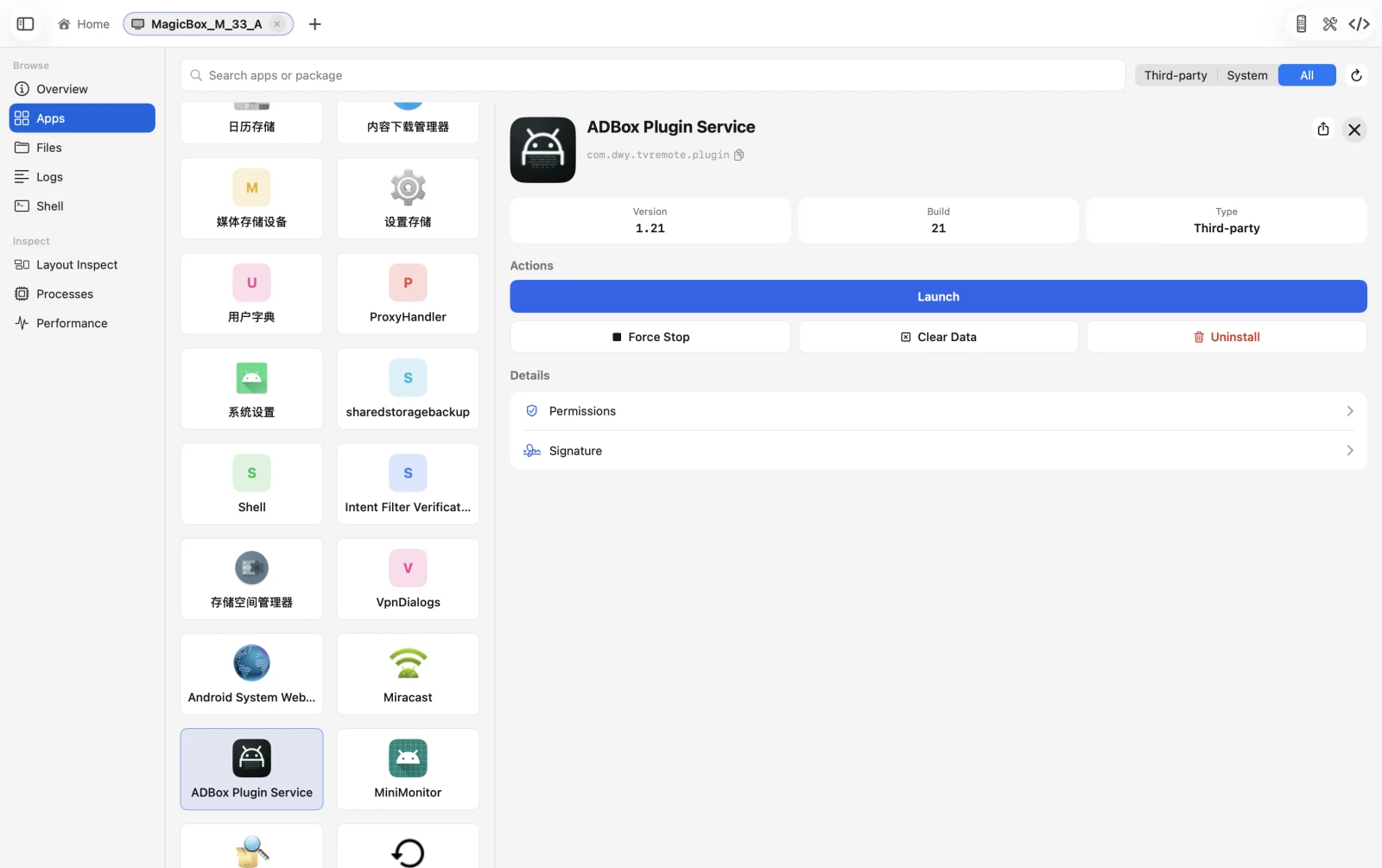
App management, in one place
ADBox Mac app management
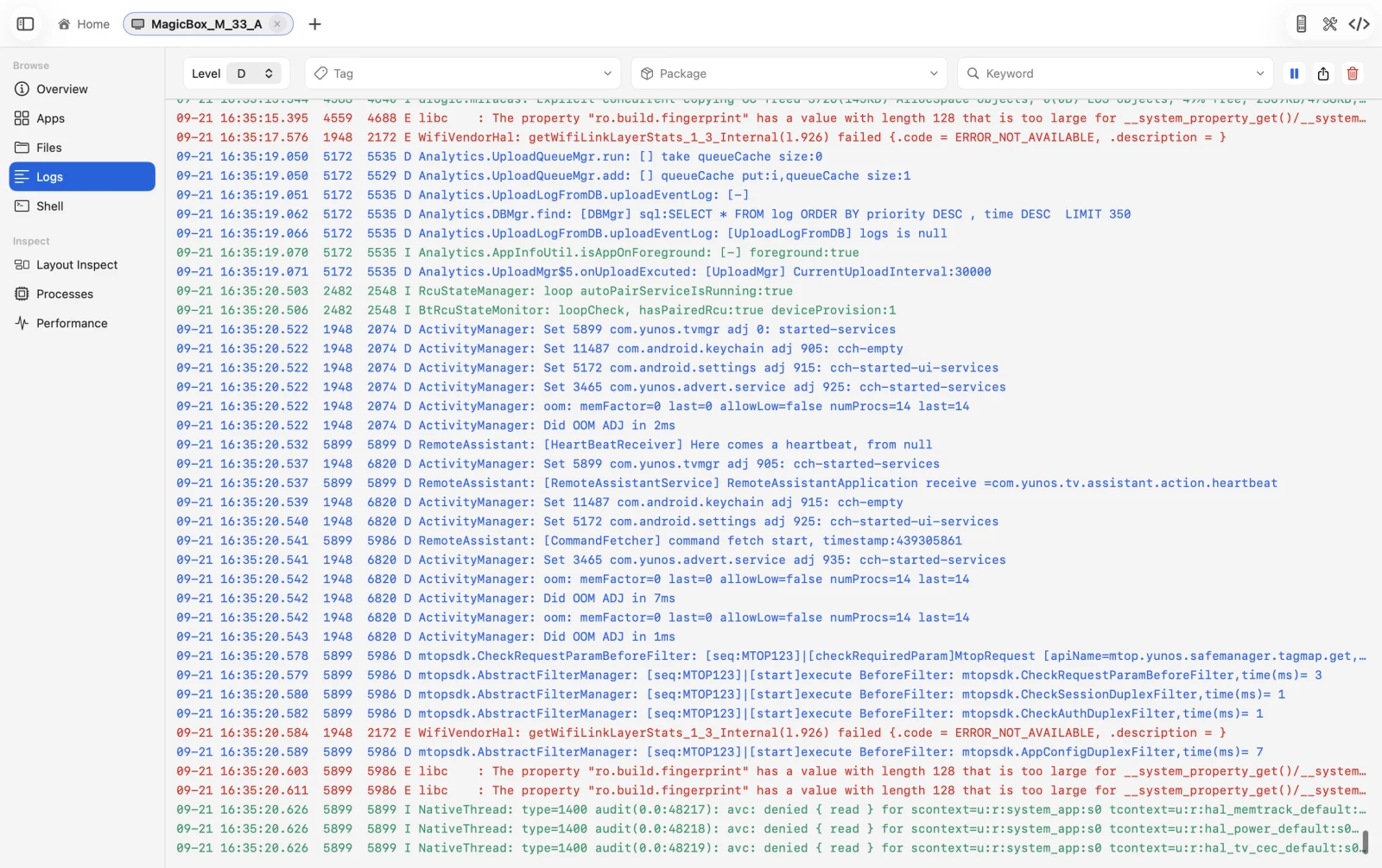
Live logs. Clearer answers.
ADBox live logs
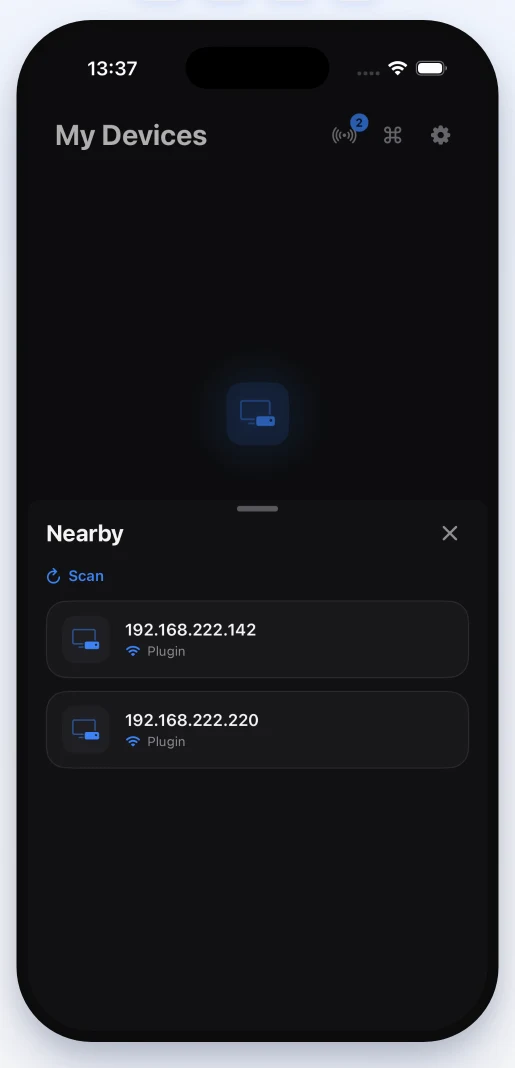
ADBox iPhone
Connect from your iPhone

From connection to a complete workflow.

Explore mirroring, management, debugging, and sync along the way.

Bring your device screen into view.

Preview an Android screen on Mac or iPhone. Use touch, keyboard, text, device keys, and clipboard input to work with it. Switch preview quality, record the mirrored view or the device screen, then save or share the result. HD and control features follow your app entitlements.

Mirroring and control · Workflow illustration

Connect once. Come back anytime.

Discover nearby devices, connect by IP and port, or pair with a wireless debugging code or QR code. Save names and addresses, switch device tabs, reconnect, cancel, or close a session. The app also manages the ADB source and device plugin.

Mac · Device discovery and connection

App management, without the command hunt.

Find apps by name, package, or type. Inspect versions, signatures, permissions, and the foreground app. Install or extract APKs, export icons, launch, force-stop, uninstall, or clear app data, with permission inspection and management in the same workspace.

Mac · App management

A clear place for your device files.

Browse folders and file details, copy paths, and preview text or images. Upload and download between your computer or phone and the device. Create files and folders, rename or delete items, and save or share what you need.

Mac · File management

Keep the remote close at hand.

Direction and confirm, back and home, menu and settings, volume and mute in one panel. Use power, number, and delete keys, or send typed text directly to the device instead of choosing one character at a time on a TV remote.

Mac · Floating remote control

Find the signal in your logs.

Read live logcat and filter by level, keyword, Tag, or package. Pause and resume, follow the latest entries, copy or export the record, and clear local history when needed. Keep investigation, reproduction, and feedback connected.

Mac · Live logs

Your familiar Shell, in the workspace.

Open an interactive ADB Shell, enter commands, and read continuous output. Clear the terminal, reconnect, or reopen a session. Save recurring commands as shortcuts and run them from your device workspace.

Mac · Interactive Shell

Look through the UI, processes, and performance.

Inspect screenshots and layout trees together, search node properties, select elements on the image, and export XML or screenshots. Filter, refresh, and stop processes. Sample CPU, memory, battery, and storage information to understand the device state.

Mac · Performance panel; layout and process inspection are also available

Keep the everyday debugging tools together.

Preview, save, copy, and share screenshots; record the device screen and export PCAP captures. Set or restore proxy, resolution, and DPI. Adjust layout bounds, overdraw, touch indicators, pointer location, and animation scale, and inspect system and network information.

Mac · Device overview and tool menu

Make recurring work your own.

Create, manage, and run device command shortcuts. On macOS, re-sign APKs and keep signing profiles in a locally unlocked vault, with signature scheme selection and file export. App versions with AI access can connect compatible tools through MCP to use authorized device and local capabilities.

Shortcuts, local tools, and AI access · Workflow illustration

Take your setup with you.

Sign in when you want to sync device profiles, command shortcuts, Mac text sizes, and hotkeys. Check sync status, sync or retry manually, and import guest data into your account. Set your preferred language, theme, fonts, and local or global keyboard shortcuts.

Accounts, profile sync, and preferences · Workflow illustration

Enlarge screenshot

Follow along. Get connected.

Watch Android wireless debugging and TV connection walkthroughs.

Connect an Android 11+ device

Follow the existing walkthrough to set up ADB wireless debugging.

Connect an Android TV

Go from enabling TV debugging to connecting in ADBox.

Start on familiar ground.

Supported features and professional entitlements follow the current app and store description. Target devices require ADB debugging and authorization.

MaciPhone

A few things to know.

Connection guide
Are there connection video tutorials?

Yes. The Tutorials section links to existing Android 11+ wireless debugging and Android TV connection walkthroughs on Bilibili and YouTube.

Who is ADBox for?

Developers and experienced users who manage or debug Android / TV devices. You need to understand and enable ADB debugging on the target device.

Are the Mac and iPhone features identical?

Layouts and available features can differ. Check the current app and store description for platform support and entitlements.

How do I prepare my device?

Check that your device supports ADB debugging, enable it, and follow the app instructions to connect and authorize. Never share pairing credentials or private keys.

Where can I download it and check pricing?

Choose “Download for macOS” or “Download for iOS” to open the platform’s ADBox listing, with screenshots, versions, and regional prices. The app is free to download with in-app purchases for some professional features. Check the store and current app for details.

Privacy & terms

Learn how data is handled and review the usage and purchase terms.

Your next smooth workflow starts here.

Connection guide

Contact ADBox

Email for private conversations. Discord for community discussion. Choose what works for you.

Contact by email

Accounts, orders, and private conversations.

Discord

Ask questions, share your workflow, and suggest ideas.

Join product Discord

QQ group

Copy the group number and search for it in QQ.

1131808297

Choose a product and email template

Choose a product and template, then complete and send the message in your email app.

Open email app